
On this page
About Content Reel
Content Reel is a free Figma plugin published by Eugene Gavriloff in 2019. It works in Figma Design and has 1,104,499 users and 16,280 likes on the Figma Community. It ranks #1 in Mock Data & Content, #5 in Free and #6 in Visual Assets on our lists.
In the developer's words
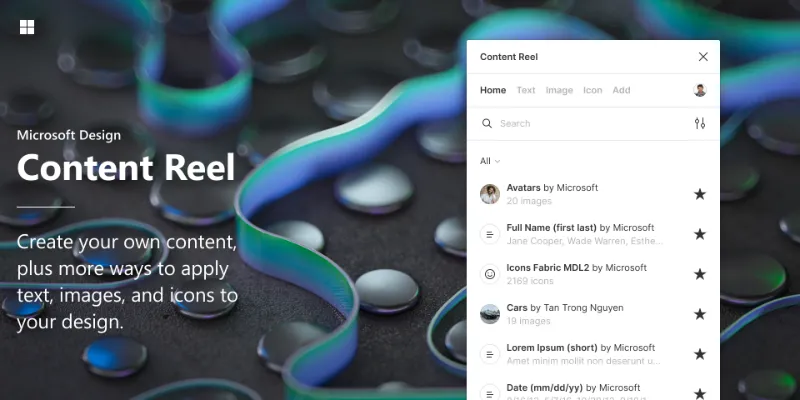
Design layouts more efficiently by pulling text strings, images, and icons from one palette. Content Reel lets you create custom content and share it with other Figma users. Collaboration has never been easier!
Content:
Browse or search content to find published collections of text strings, images, and icons. Having trouble finding what you need from existing content? You can create your own text and image content by using Add.
Add:
Create text categories and populate them with your own text strings. You can also upload up to 20 PNGs or JPEGs to create image content. As a creator, you may choose to share it publicly or keep it private. When you create content, it is automatically pinned to Home Screen for quick access (signed-in users only).
Customize Your Home screen:
Optimize your workflow by pinning the content that you use most to your home screen. Apply 1-click access to any content type with the switch of a toggle (signed-in users only). Drag and drop items on your home screen to suit your preferences.
How to use Content Reel:
Find content:
Access saved content from your Home Screen or navigate through the tabs to search or browse content. Pin it for ease of access to your Home screen.
Applying text content:
Select one or more text layers in your design to apply strings individually or apply them all. Use the original order provided or choose an order from the drop-down menu.
Applying image content:
Select one or more image layers or frames in your design, then apply the images individually or apply them all in random order.
Applying icon content:
Browse the collection or use the search bar to find an icon. Click on the icon or drag and drop it into your design. Change the format between glyph or SVG by clicking on the settings menu. You can also adjust the icon size to scale as needed. When using glyphs make sure the selected font is downloaded and installed in Figma.
Creating text and image content: Navigate to the Add tab, click Add, and select content type. Provide a Title that is relevant to your content. Set your content to Public or Private. See the terms and conditions regarding usage and rights.
—
Got more ideas?
Send them our way at designtools@microsoft.com
Or join the Spectrum community at https://spectrum.chat/content-reel
—
What's new
Version 89 · released Feb 17, 2025
The developer didn't publish release notes for this version.
Permissions and privacy
Network access
Content Reel can only connect to the 9 domains declared in its manifest: wss://contentreel.design, contentreel.design, www.contentreel.design, iconcloudweb-preview.azurewebsites.net, cdn.jsdelivr.net, content-reel-cors-anywhere.azurewebsites.net, assetbucketdevelopment.blob.core.windows.net, dc.services.visualstudio.com and lh4.googleusercontent.com/.
- wss://contentreel.design
- contentreel.design
- www.contentreel.design
- iconcloudweb-preview.azurewebsites.net
- cdn.jsdelivr.net
- content-reel-cors-anywhere.azurewebsites.net
- assetbucketdevelopment.blob.core.windows.net
- dc.services.visualstudio.com
- lh4.googleusercontent.com/
Extra permissions
None beyond the standard access to the file you run it in.
Read from the plugin's published manifest.
Where Content Reel ranks
Content Reel alternatives
- 1

Logoipsum
by Rizal Renaldi
167K users720FreeLorem ipsum of logo
- 2

JSON to Figma
by Pavel Laptev
87K users931Free + $17 upgradejson, population, images
- 3

Avatars
by Alohe
68K users868FreeAvatars is a comprehensive collection of diverse and eye-catching avatar images
- 4

FishText in Russian by Pavel Sherer
by Pavel Sherer
50K users721FreeСамый удобный генератор случайного текста, умный Lorem Ipsum на русском языке
- 5

Faker
by Cory Etzkorn
50K users762FreeRealistic placeholder text. Names, emails, URLs, headlines, and more.
- 6

Chinese Content Filling Assistant
by NB Charts
47K users1.1KFreeNB Text
Content Reel FAQ
What does Content Reel do?
Design layouts more efficiently by pulling text strings, images, and icons. It's a Figma plugin by Eugene Gavriloff that runs in Figma Design.
Is Content Reel free?
Yes. Content Reel is free to install and run from the Figma Community, with no paid tier listed.
Is Content Reel safe to use?
Figma plugins can only reach the internet through domains listed in their manifest. Content Reel can only connect to the 9 domains declared in its manifest: wss://contentreel.design, contentreel.design, www.contentreel.design, iconcloudweb-preview.azurewebsites.net, cdn.jsdelivr.net, content-reel-cors-anywhere.azurewebsites.net, assetbucketdevelopment.blob.core.windows.net, dc.services.visualstudio.com and lh4.googleusercontent.com/. As with any plugin, check the developer's privacy policy before using it on client work.
How do I install Content Reel?
Open it on the Figma Community, or search for it in the Actions menu (Cmd/Ctrl + K) inside any file you can edit. See how to install Figma plugins.
What are the best alternatives to Content Reel?
By user count, the closest alternatives are Logoipsum, JSON to Figma and Avatars. Compare all of them on the best Figma plugins for mock data & content.
Built this plugin?
Use this page as a landing page for Content Reel: link to it from your site, README or launch posts, or add a badge. Pick a style and copy the code.

Style
Label
Size
Code
<a href="https://figmaplugins.co/plugins/content-reel/" target="_blank" rel="noopener"><img src="https://figmaplugins.co/badges/featured-dark.svg" alt="Content Reel on figmaplugins.co" width="220" height="48"></a>