The best Figma Dev Mode and handoff plugins in 2026
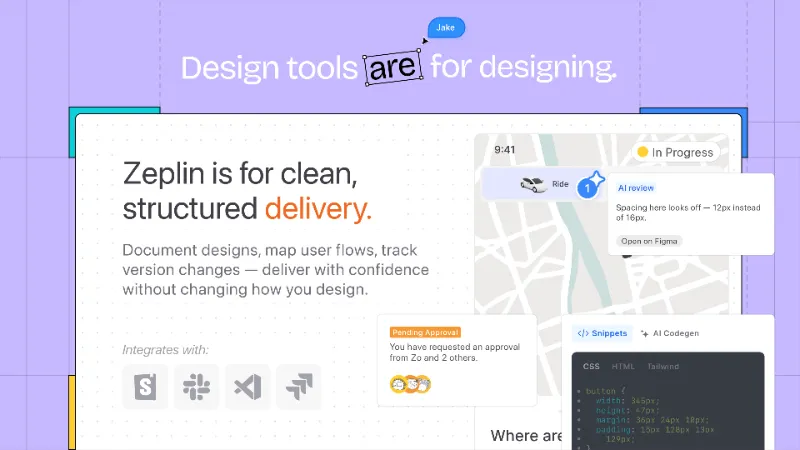
Zeplin is the most-used Figma handoff plugin, with 291K users. It publishes your frames to Zeplin, a separate app where developers get structured specs, user flows and version history without opening the Figma file.
Top 20 picks

Zeplin
#1 · 291K users
Quick answer
Our top picks
- #1
Most used
Zeplin
by Zeplin Crew
Zeplin moves finished frames into a dedicated handoff app with specs, flows, version tracking and documentation. It suits larger teams who want a clear line between work in progress and approved designs. It's free with paid features, and it adds a second tool your team has to keep in sync with Figma.291K 2.9KFree + paid - #6
Best free on-canvas specs

DesignDoc [Spectral]: Measures, Annotations, and Handoff
by Marka Plugin Dev
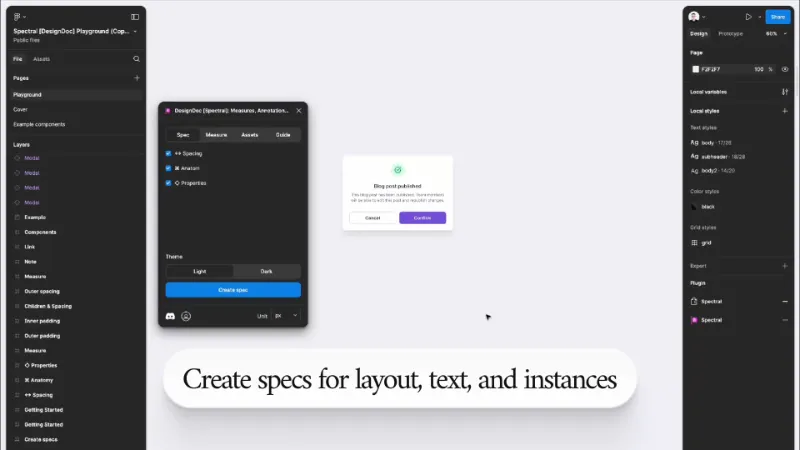
DesignDoc [Spectral] draws spacing, margins, padding and measurements onto your designs, plus annotations for handoff. It's free and works for developers who don't have a Dev Mode seat, since the specs are ordinary layers. Those layers don't update themselves, so rerun it after design changes.132K 3KFree - #7
Best for linking designs to tickets

Jira
by Figma Community
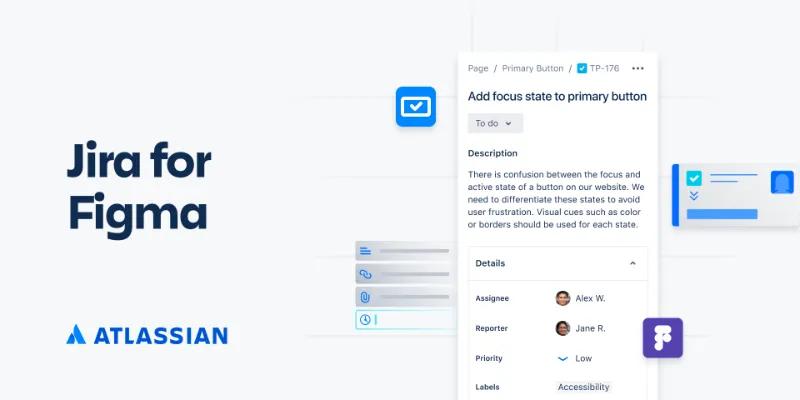
The Jira plugin, published by Figma, connects frames to Jira issues so developers see the ticket context next to the design in Dev Mode. It's the right choice for teams that track work in Jira Cloud. Its listing notes it doesn't work with Jira Server or Jira Data Center.81K 552Free
Outside the ranking · Disclosure
The full list
The 20 most-used Figma plugins for dev handoff
- 01
Zeplin
Design tools are for designing. Zeplin is for clear, structured design delivery.
Free + paid · 2.9K likes
291K2.9KFree + paid - 02
 158K3.2KFree
 - 03

Redlines
Free · 3.8K likes
141K3.8KFree - 04
 136K3.9KFree
 - 05

Specs Classic
Generate component specs including anatomy, props and layout & spacing
Free + $8/mo · 5.5K likes
136K5.5KFree + $8/mo - 06
DesignDoc [Spectral]: Measures, Annotations, and Handoff
📐 Effortlessly hand off your Figma designs to the development team
Free · 3K likes
132K3KFree - 0781K552Free
- 08
 61K1KFree
 - 09
 54K1.5KFree
 - 10
 51K1.2KFree
 - 11
 41K1.3KFree
 - 12
 35K227Free
 - 13
 28K361Free
 - 14

Weblify Code Inspector
Inspect your Figma layers as HTML/CSS, Tailwind, React or Vue code in one click
Free · 163 likes
21K163Free - 15

SwiftUI Inspector
Free + paid · 520 likes
19K520Free + paid - 16

Measure Tools
Free · 191 likes
17K191Free - 17
 17K360Free
 - 18
 17K601Free
 - 19

Avocode
Free · 154 likes
15K154Free - 20

Select all instances
Swiss army knife for component instance inspection and selection.
Free · 126 likes
13K126Free
Buying guide
What to look for
Dev Mode covers a lot natively: inspect, measurements, code snippets in CSS, SwiftUI, UIKit, Compose and XML, variables with their alias chains, and annotations. It needs a Dev or Full seat on a paid plan, though. Handoff plugins earn their place when developers don't have those seats and need specs drawn on the canvas, or when you want frames linked to Jira, GitHub or Storybook. Our design specs guide shows what a full spec should include.
The plugins in this list do three different things. Some draw redlines and measurements into the file (Measure, Redlines, DesignDoc). Some generate component spec sheets (Specs Classic). The rest are connectors that run inside Dev Mode (Jira, GitHub, Storybook Connect). Pick based on where your developers actually read specs.
- 01
Where developers read specs
If they live in Dev Mode, use plugins that run there. If they open a PDF, a ticket or a separate tool, pick one that draws specs onto the canvas or exports them.
- 02
Seats
Dev Mode and native annotations need paid Dev or Full seats. Spec layers drawn by a plugin are visible to anyone who can open the file, including Starter and View seats.
- 03
Staying accurate
Dev Mode reads live values. A redline drawn by a plugin is a snapshot and goes stale when the design changes, so plan to regenerate specs after edits.
- 04
Tool connections
Linking a frame to a Jira issue, a GitHub pull request or a Storybook story gives developers context without a separate spec. Check that the integration supports your setup; the Jira plugin, for example, doesn't support Jira Server or Data Center.
- 05
Units and platforms
Mobile and print teams may need dp, pt or millimetres. Tools like Millimeters and SwiftUI Inspector exist for those cases.
FAQ
Frequently asked questions
Which plugins work in Figma Dev Mode?
Only plugins built for Dev Mode appear in its Plugins tab. In this list that includes Measure, Jira, GitHub, Storybook Connect, Weblify Code Inspector and Component Inspector. Each plugin page shows the editors it supports.
Do developers need a paid seat for Dev Mode?
Yes. Dev Mode needs a Dev or Full seat on a paid plan. Developers on a View seat can still see anything a plugin draws on the canvas, which is why on-canvas spec plugins stay popular.
Is Zeplin still worth using with Dev Mode?
It depends on your process. Dev Mode reads the live file; Zeplin gives developers a separate, approved snapshot with versions and flows. Teams that want a hard line between exploration and approved designs still use it.
How do I add measurements for developers in Figma?
On a paid plan, use the native Measurement tool (Shift + M) to save measurements developers see in Dev Mode. For everyone else, Measure or Redlines draw measurement lines as layers. Our Figma annotations guide compares the two.
How do I make a component spec in Figma?
Document anatomy, spacing, properties and states on a frame next to the component, by hand or with a generator like Specs Classic. The design specs guide walks through a template.
Keep exploring
Related lists and guides
Annotations
annotating designs
See the top picks


Figma to Code
turning designs into code
See the top picks


Design Systems
building and maintaining design systems
See the top picksGuides
- How to Make Design Specs in FigmaWhat a Figma design spec should include, how to build a component spec template by hand, what Dev Mode already covers, and how to generate specs with Autospec.
- How to Open Figma in Dev ModeOpen Figma Dev Mode with Shift+D or the toolbar toggle. Which plans and seats get it, why you see "can't access Dev Mode", and how to inspect without it.
- Figma Annotations: How They Work and Who Can See ThemHow Figma annotations work in Design and Dev Mode, which seats can add and view them, how they differ from comments, and when an annotation plugin helps.
- How to install Figma pluginsFigma plugins don't need installing: open one from the Community or run it inside a file. Steps for Figma Design, Dev Mode, FigJam, Slides, saving and admins.
- Figma plugins not working? How to fix itFigma plugins not loading, missing or greyed out? Check your seat and edit access, org approval, network blocks and cache. A step-by-step checklist that works.
- How to Generate All Component Variants in FigmaFigma shows only the variants you draw. Here's how to lay out every combination of variant, boolean and nested props as a matrix, by hand or with Instancer.