
On this page
About Accessibility Assistant
Accessibility Assistant is a free Figma plugin published by Eugene Gavriloff in 2019. It works in Figma Design and has 37,506 users and 1,565 likes on the Figma Community. It ranks #5 in Annotations and #9 in Accessibility on our lists.
In the developer's words
About this plugin
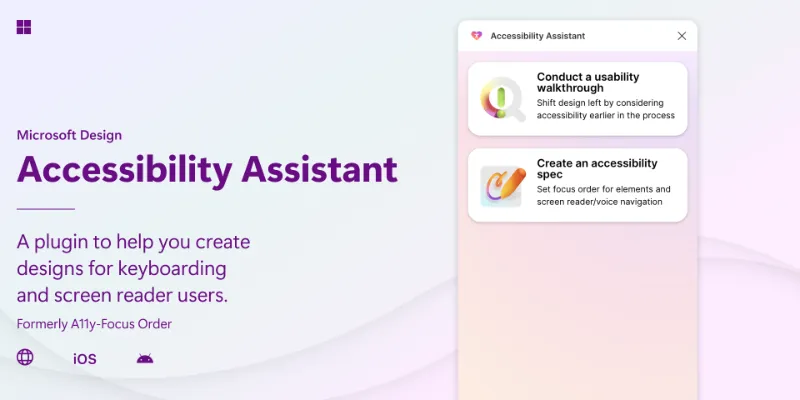
The Accessibility Assistant lets you add Figma native annotations to mark up accessibility for interactive elements, headings, images and landmarks of desktop, website, and mobile applications, and also provides checklists and notes to review designs for accessibility before you spec. Share these annotations with designers, and then share the spec with engineers as part of your design. Accessibility is critical for good design. Making your designs accessible makes them easier to use for everyone. Our plugin addresses a very specific corner of accessibility. As designers, we often think about accessibility visually, in terms of color contrast, type readability, etc. This plugin addresses accessibility for keyboarding and screen reader software. It helps designers and engineers create a plan for how their product will interact with this technology so that screen readers can communicate properly with their users.
Annotating the focus/tab order for your designs is critical for accessibility
To create websites and applications that are inclusive and accessible to everyone, the designs that you create need to be device independent, which means that anyone can interact with your designs regardless of whether they’re using a mouse, keyboard, touch, gaze, or voice.
With this plugin you can
• Add Figma native annotations over your design including headings, landmarks, and images
• Bulk add, remove, reorder, and update your annotations
• Create multiple annotation sets
• Annotations are stored in the Dev Mode layer so no longer fill up your drawing layers
• Accessible Design checklists based on the UI Tenets “Understandable”, “Efficient” and “Habituating”
Learn more about the plugin and accessibility best practices
Walk through the tutorial for this plugin. To learn more about accessibility for the web visit w3.org. Check out the WAI-ARIA patterns for the most common elements you’ll use https://www.w3.org/WAI/ARIA/apg/patterns/. Learn how to write web content that is more accessible to people with disabilities https://www.w3.org/WAI/tips/writing/.
This plugin is brought to you by Microsoft
Special thanks to the following individuals for their contributions:
• HCL: Swati Aggarwal, Divyanshu Dwivedi, Abhishek Konnur, Animesh Mishra, Abhishek Rai, Ashish Singh, and Ganji Srikanth.
• GitHub: Carie Fisher
• Microsoft: Anna Cook, Clint Covington, Michael Fairchild, Andrea Fowler, Kelly Gorr, Aaron Gustafson, Manika Malhotra, Christina Mallon, Emily McLean, Mallika Meiyappan, Scott O’Hara, David Snow, Dima Steiteyeh, Jackie Tidwell, and Ben Truelove.
What's new
Version 52 · released Feb 20, 2026
- Annotations are now presented as Dev Mode annotations.
- Legacy annotation tables will automatically upgrade into the new system.
- Legacy annotation tables will be hidden, but are still accessible; we’ve included a tool to clean up the old layers when you’re ready.
- Annotations are now managed in a single, unified system rather than being separated out based on whether they impact focus order.
- Expanded the list of W3C roles available in the role picker.
- Improved the form used for creating and editing annotations for websites to provide role-specific fields.
- Bugfix: you can now copy layers and the annotations will transfer as part of a new Annotation Set.
- Bugfix: you can now duplicate pages and the annotations will be re-generated (this may take some time on particularly large pages).
Permissions and privacy
Network access
Accessibility Assistant's manifest allows network access to any domain ("*"), so Figma doesn't limit where it can send data.
- *
Extra permissions
None beyond the standard access to the file you run it in.
Read from the plugin's published manifest.
Where Accessibility Assistant ranks
Accessibility Assistant alternatives
- 1

Measure
by Philip
158K users3.2KFreeAdd measurement lines and additional helpful information to your designs
- 2

Redlines
by Danny Keane
141K users3.8KFree - 3

Specs Classic
by Directed Edges Plugins
136K users5.5KFree + $8/mo upgradeGenerate component specs including anatomy, props and layout & spacing
- 4

DesignDoc [Spectral]: Measures, Annotations, and Handoff
by Marka Plugin Dev
132K users3KFree📐 Effortlessly hand off your Figma designs to the development team
- 5

Annotate Design
by Alexandru Buncea
35K users485FreeQuickly add annotations to your designs
- 6

notely ✍️
by Dave aka Raiken
25K users125FreeSticky Note Creation, Management & Sync Between Plugin and Figma Documents
Accessibility Assistant FAQ
What does Accessibility Assistant do?
Add reader output and focus order to your layout. It's a Figma plugin by Eugene Gavriloff that runs in Figma Design.
Is Accessibility Assistant free?
Yes. Accessibility Assistant is free to install and run from the Figma Community, with no paid tier listed.
Is Accessibility Assistant safe to use?
Figma plugins can only reach the internet through domains listed in their manifest. Accessibility Assistant's manifest allows network access to any domain ("*"), so Figma doesn't limit where it can send data. As with any plugin, check the developer's privacy policy before using it on client work.
How do I install Accessibility Assistant?
Open it on the Figma Community, or search for it in the Actions menu (Cmd/Ctrl + K) inside any file you can edit. See how to install Figma plugins.
What are the best alternatives to Accessibility Assistant?
By user count, the closest alternatives are Measure, Redlines and Specs Classic. Compare all of them on the best Figma plugins for annotations.
Built this plugin?
Use this page as a landing page for Accessibility Assistant: link to it from your site, README or launch posts, or add a badge. Pick a style and copy the code.

Style
Label
Size
Code
<a href="https://figmaplugins.co/plugins/accessibility-assistant/" target="_blank" rel="noopener"><img src="https://figmaplugins.co/badges/featured-dark.svg" alt="Accessibility Assistant on figmaplugins.co" width="220" height="48"></a>