The developer handoff stack: 7 Figma plugins
Dev Mode covers inspect and code snippets. This stack covers the rest of a handoff: a head start on code, measurements engineers can read at a glance, a link from each frame to its ticket, a check against the real component, and assets exported at a sensible file size.
7 plugins7 free to startPicked by figmaplugins.co

Figma to Code
2.4M users
Make it yours. Copy this stack to your account, swap plugins in or out, and share your version with a link.
Make it my stackThe stack
7 plugins, one job each
- 1
Figma to Code
by Bernardo Ferrari
2.4M users8.9KFreeBest forCode export
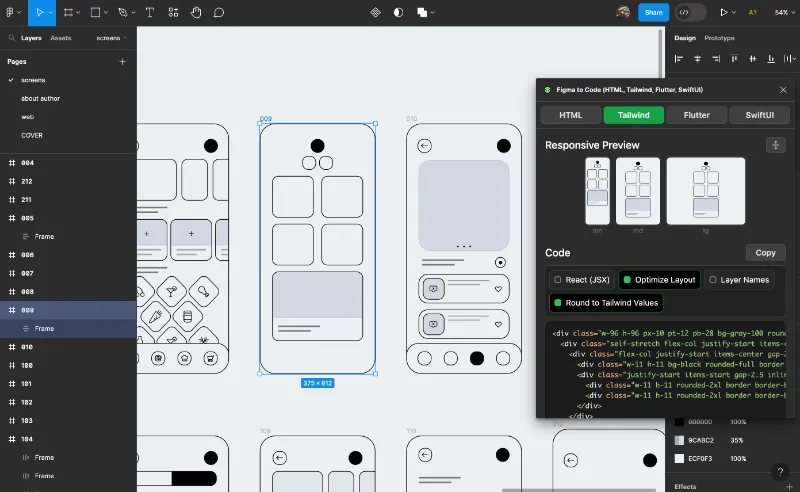
Turns a selected frame into HTML, Tailwind, Svelte, Flutter or SwiftUI, processed locally on your machine. Treat the output as a starting point: it's cleanest on well-structured auto layout.
- 2

Builder.io
by Steve Sewell
1.3M users23KFreeBest forAI code export
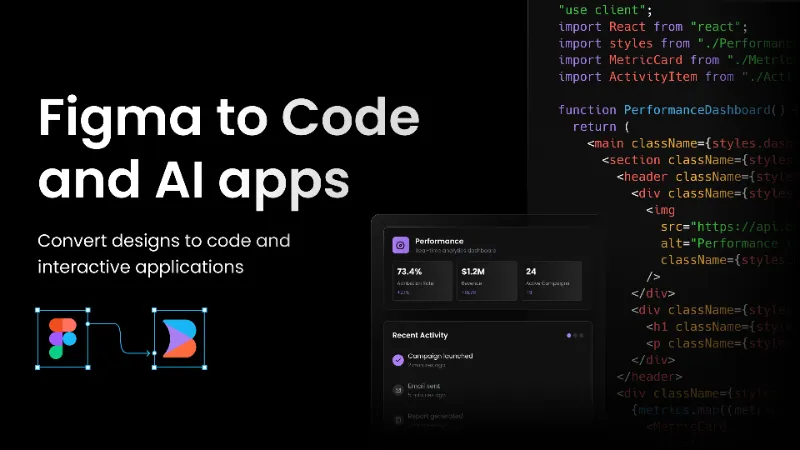
Uses AI to turn designs into code for your framework, with no special file prep. Better suited to whole screens than small tweaks.
- 3

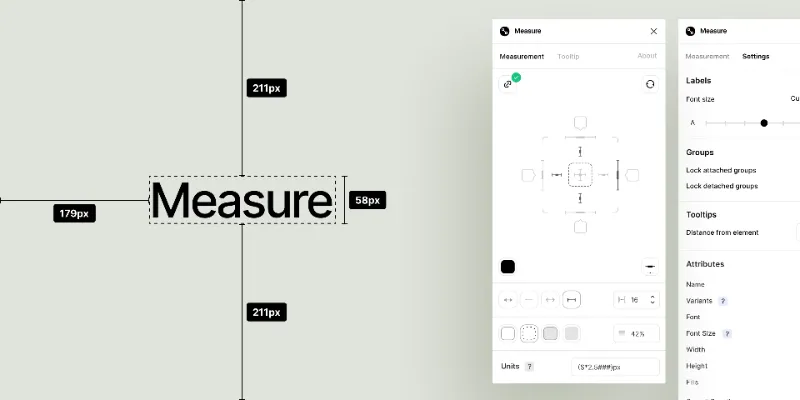
Measure
by Philip
161K users3.3KFreeBest forRedlines
Adds measurement lines, spacing and size labels to a frame, for engineers who read specs rather than click around in inspect.
- 4

Zeplin
by Zeplin Crew
293K users2.9KFree + paid featuresBest forHandoff hub
Publishes finished screens to Zeplin with flows, versions and documentation, for teams that want a clear line between work in progress and ready to build.
- 5

Jira
by Figma Community
84K users568FreeBest forTickets
Links frames to Jira issues and shows ticket status inside Dev Mode. It doesn't support Jira Server or Data Center, only Jira Cloud.
- 6

Storybook Connect
by Chromatic Deploys
63K users1.1KFreeBest forComponent check
Shows the Storybook story next to the design, so a reviewer can spot drift between the component in Figma and the one in code.
- 7

TinyImage Compressor
by Hypermatic
527K users4.7KFree + paid featuresBest forAsset export
Exports compressed JPG, PNG, WebP, AVIF and SVG files, so assets arrive web-ready instead of at Figma's default export size.
Outside the stack · Disclosure
FAQ
Frequently asked questions
Do developers need Figma plugins if they use Dev Mode?
Dev Mode handles inspect, measurements and code snippets. Plugins add what it doesn't: full-screen code export, ticket links, Storybook comparisons and compressed asset exports. See our Dev Mode guide.
Can a Figma plugin generate production-ready code?
It can generate a solid starting point. Figma to Code and Builder.io both produce clean markup from well-built auto layout, but expect to wire up data, state and your own components by hand.
What's the best way to add specs to a Figma design?
Use Dev Mode annotations for notes and Measure for visible redlines. Our guide to design specs in Figma compares the options.
Keep exploring
Related lists and guides


Dev Handoff
developer handoff and Dev Mode
See the top picks
Figma to Code
turning designs into code
See the top picks

Developers
developers
See the top picks
Annotations
annotating designs
See the top picksGuides
- How to Open Figma in Dev ModeOpen Figma Dev Mode with Shift+D or the toolbar toggle. Which plans and seats get it, why you see "can't access Dev Mode", and how to inspect without it.
- How to Make Design Specs in FigmaWhat a Figma design spec should include, how to build a component spec template by hand, what Dev Mode already covers, and how to generate specs with Autospec.
- Figma Annotations: How They Work and Who Can See ThemHow Figma annotations work in Design and Dev Mode, which seats can add and view them, how they differ from comments, and when an annotation plugin helps.
- Where Is the Inspect Tab in Figma?Figma's Inspect tab now lives in Dev Mode. How to see CSS and specs without a Dev seat, get a missing right sidebar back, and find what else UI3 moved.
More stacks
- 8 plugins
Figma starter stack
Designers setting up Figma for the first time



 See the stack
- 7 plugins
Design system stack
Design system maintainers and the teams that consume a library


 See the stack
- 6 plugins
Wireframing and user flow stack
UX designers mapping structure and flows before visual design



 See the stack